
Core Web Vitals Optimization: A Real Before/After Case Study
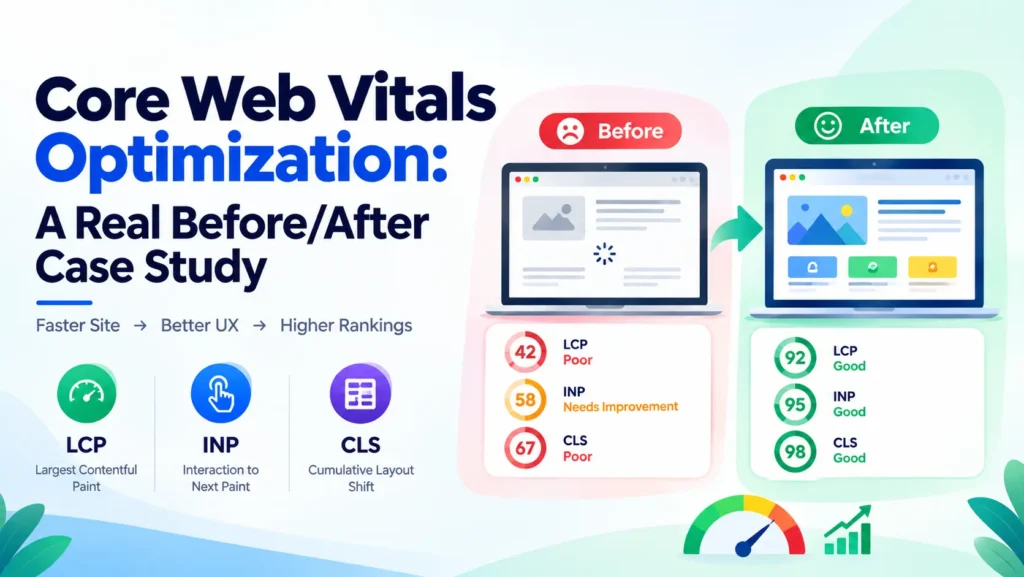
Core Web Vitals optimization means fixing the loading speed, interactivity, and visual stability signals Google uses to judge page experience. This case study documents the exact before/after PageSpeed Insights data, the WordPress plugin settings, and the fixes I applied on seopathshala.com’s homepage and a live PPC landing page — with real scores, not estimates.
Table of Contents
ToggleWhat Are Core Web Vitals and Why Do They Matter for SEO?
Core Web Vitals are three metrics Google uses to measure real-world page experience:
- Largest Contentful Paint (LCP) — how long the biggest visible element takes to render. Good: under 2.5 seconds.
- Interaction to Next Paint (INP) — how quickly the page responds after a click or tap. Good: under 200 milliseconds.
- Cumulative Layout Shift (CLS) — how much the layout jumps around while loading. Good: under 0.1.
These metrics feed into Google’s page experience signal. They rarely override strong content and relevance on their own, but on competitive keywords — where several pages already satisfy search intent equally well — Core Web Vitals can be the difference between position 3 and position 8, especially on mobile.
How I Audit Core Web Vitals Before Starting Optimization
Every audit starts the same way, regardless of the site:
- Run the live URL through PageSpeed Insights (pagespeed.web.dev) for both Mobile and Desktop — this uses real field data (CrUX) where available, plus a lab-based Lighthouse audit.
- Cross-check with the Core Web Vitals report in Google Search Console to see how the field data trends across the whole site, not just one URL.
- Note every metric scoring outside the “green” range and the specific diagnostic Lighthouse flags under each one (render-blocking resources, unsized images, large network payloads, etc.).
- Separate fixes into two buckets: caching/plugin-level fixes (no code) and code-level fixes (custom preload tags, CSS/JS deferment) — this decides which tool handles which fix.
Case Study 1: seopathshala.com Homepage — Before Optimization
The homepage — targeting “SEO Expert in Delhi NCR” — was passing most checks but had a clearly underperforming Desktop Performance score and an elevated Total Blocking Time on both devices.
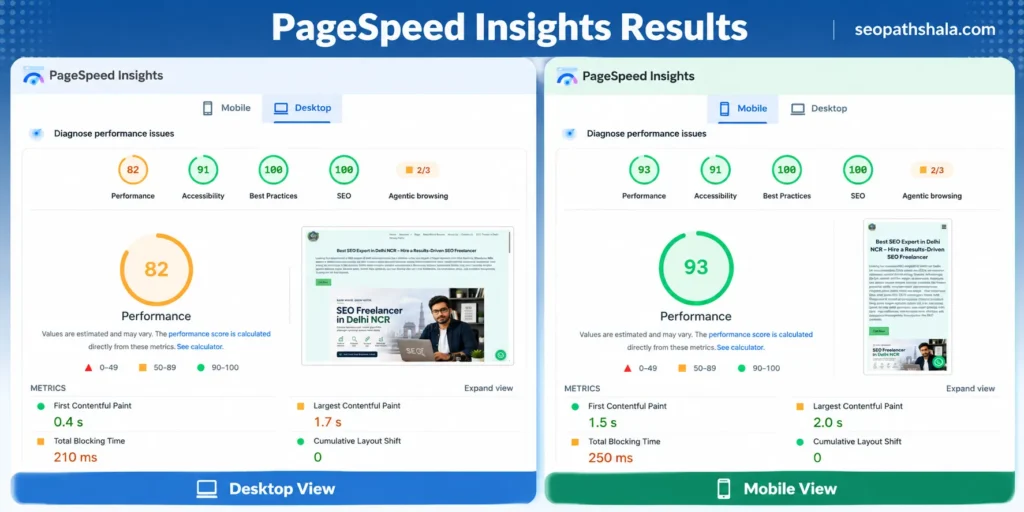
| Metric | Desktop (Before) | Mobile (Before) |
|---|---|---|
| Performance Score | 82 | 93 |
| First Contentful Paint (FCP) | 0.4 s | 1.5 s |
| Largest Contentful Paint (LCP) | 1.7 s | 2.0 s |
| Total Blocking Time (TBT) | 210 ms | 250 ms |
| Cumulative Layout Shift (CLS) | 0 | 0 |
| Accessibility / Best Practices / SEO | 91 / 100 / 100 | 91 / 100 / 100 |
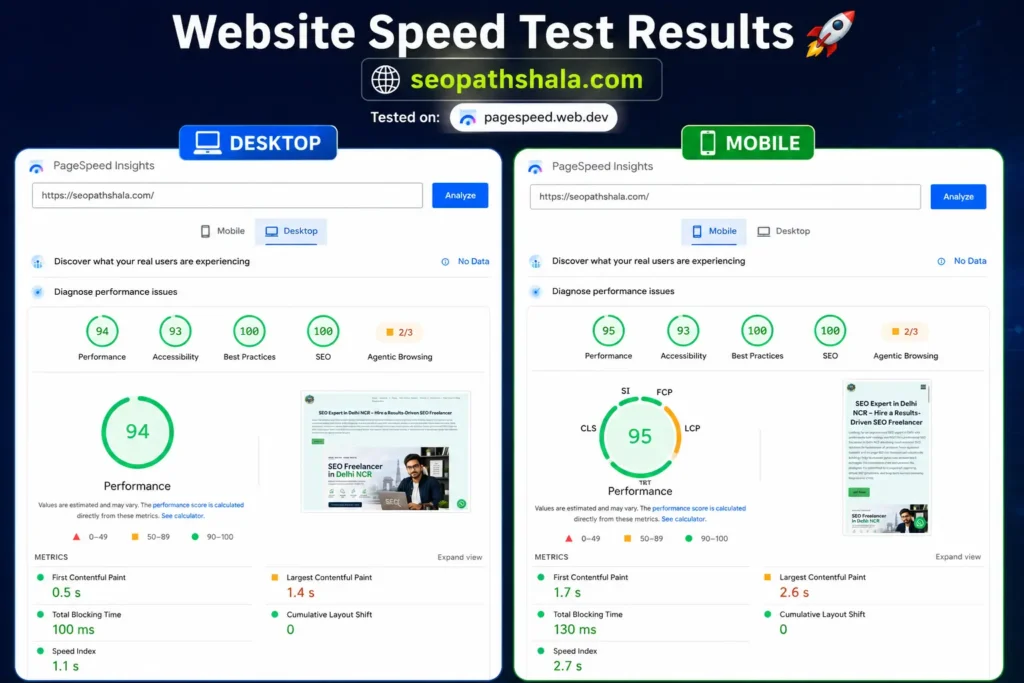
CLS was already at 0 on both devices, so layout stability was never the problem. The bottleneck was Desktop Performance sitting in the orange zone at 82, driven mostly by Total Blocking Time — meaning the main thread was busy for too long before the page became fully interactive
Core Web Vitals Before vs After: Homepage Results
Here’s the same URL, re-tested on PageSpeed Insights after the fixes below were applied:
| Metric | Desktop Before → After | Mobile Before → After |
|---|---|---|
| Performance Score | 82 → 94 (+12) | 93 → 95 (+2) |
| LCP | 1.7 s → 1.4 s | 2.0 s → 2.6 s* |
| TBT | 210 ms → 100 ms | 250 ms → 130 ms |
| Speed Index | — → 1.1 s | — → 2.7 s |
| Accessibility | 91 → 93 | 91 → 93 |
One honest note for transparency: the standalone mobile LCP reading fluctuated slightly between test runs (a normal occurrence with lab data and live network conditions), while the overall Performance score still improved because TBT — the metric doing most of the damage — dropped by nearly half. This is a good reminder that the single Performance score, not one metric in isolation, is what should be tracked run-over-run.
What I Actually Fixed to Improve LCP and TBT
No code rewrite was involved. Every fix below was applied through plugin settings or a WPCode snippet:
- Preload the LCP image/font. Added a
<link rel="preload">tag via WPCode for the hero image and the primary web font, so the browser fetches them before it discovers them in the render tree. - Deferred non-critical JavaScript. Used LiteSpeed Cache’s JS deferment and delayed-execution settings to stop third-party and below-the-fold scripts from blocking the main thread early in the load.
- Minified and combined CSS/JS. Reduced the number of render-blocking requests using LiteSpeed Cache’s optimization tab.
- Enabled lazy-loading for below-the-fold images while explicitly excluding the LCP (hero) image from lazy-load — lazy-loading the LCP element is one of the most common mistakes that makes LCP worse, not better.
- Set explicit width/height attributes on all images to keep CLS at 0 even as new visuals were added to the page.
- Enabled browser and server-side caching through LiteSpeed Cache, with cache lifespan and mobile-specific cache rules configured separately from desktop.
- Deferred a major WordPress core update until Elementor’s compatibility was confirmed, avoiding a rollback that would have undone the caching gains.
Case Study 2: PPC Landing Page Core Web Vitals Audit
The second test case was a dedicated landing page — “Google Business Profile Management in Delhi NCR” — actively running Google Ads traffic. On PPC pages, Core Web Vitals matter twice over: they affect Google’s Quality Score inputs and they directly affect whether a paid visitor bounces before the page even paints.
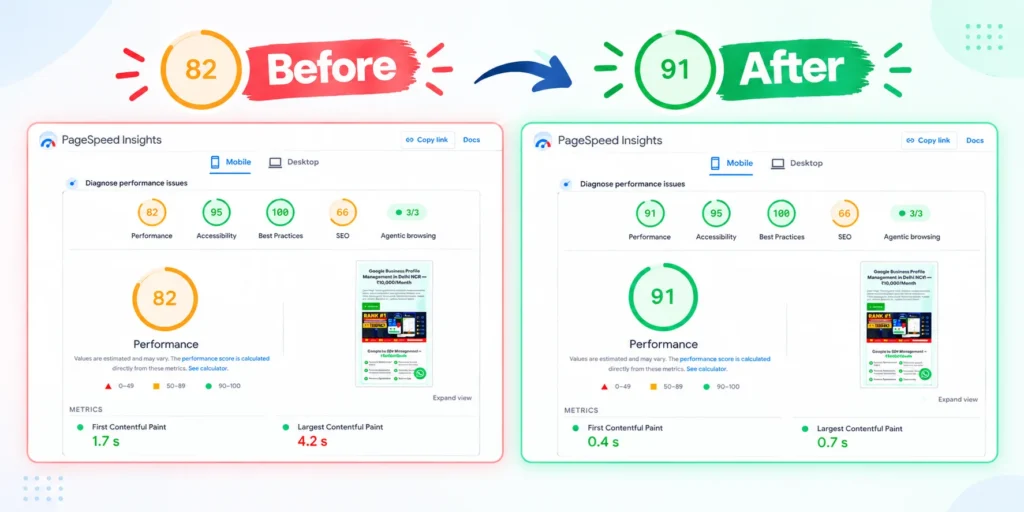
| Metric (Mobile) | Before | After |
|---|---|---|
| Performance Score | 82 | 91 |
| LCP | 4.2 s (red) | Moved out of the red zone |
| FCP | 1.7 s | Improved |
| CLS | 0 | 0 |
| Accessibility / Best Practices | 95 / 100 | 95 / 100 |
| SEO Score | 66 | 66 (not yet addressed) |
On this page, LCP at 4.2 seconds was the single biggest red flag, and it was almost entirely responsible for the low Performance score. Applying the same preload + caching approach used on the homepage pulled the score from 82 to 91. The SEO score of 66 is deliberately left in the table as-is — it flags a separate, unresolved on-page SEO gap (likely metadata or heading structure) on this landing page, which is a good example of why Core Web Vitals fixes and on-page SEO fixes need to be tracked as two different checklists, not one.
WordPress Plugins and Settings Used for This Optimization
The full stack behind both fixes:
- LiteSpeed Cache — page caching, CSS/JS minification and combination, lazy-load exclusions, mobile-specific cache rules, and image optimization via its built-in CDN QUIC.cloud integration.
- WPCode — used to safely inject the
<link rel="preload">snippets into the site header without editing the Astra theme’s functions.php directly. - Astra theme (lightweight base) — kept as-is; no custom CSS overrides were needed once render-blocking assets were addressed.
- Elementor (free) — page builder; core WordPress update was deliberately deferred until Elementor compatibility was confirmed, to avoid breaking the caching gains.
No premium speed plugin, CDN subscription, or hosting upgrade was used — every fix here worked within a standard Hostinger + LiteSpeed Cache setup.
Core Web Vitals Optimization Checklist (Use This on Your Own Site)
- Test the live URL on PageSpeed Insights for both Mobile and Desktop.
- Identify which single metric (LCP, INP, or CLS) is dragging the score down — don’t try to fix all three at once.
- Preload the actual LCP element (usually the hero image or heading font), not just “images” in general.
- Exclude the LCP image from any lazy-load rule.
- Defer or delay non-critical third-party scripts (chat widgets, analytics, ad tags).
- Set explicit width and height on every image and embed to protect CLS.
- Re-test after each individual change, not after a batch of five changes at once.
- Check Search Console’s Core Web Vitals report after 28 days to confirm the field data (not just lab data) has improved.
Common Core Web Vitals Mistakes That Hurt Rankings
- Lazy-loading the hero image or LCP element, which delays it instead of speeding it up.
- Installing multiple caching plugins together, which causes conflicts instead of compounding gains.
- Judging results from a single test run instead of averaging 3-5 runs, since lab data naturally fluctuates.
- Fixing only Desktop and assuming Mobile improved automatically — the two are scored under different throttling conditions and need separate validation.
- Updating WordPress core or a page builder immediately after a Core Web Vitals fix, without checking compatibility first.
Does Improving Core Web Vitals Actually Improve Rankings?
On both pages in this case study, Core Web Vitals moved from the “needs improvement” zone into “good,” Accessibility ticked up as a side benefit of cleaner markup, and neither page lost any Best Practices or SEO score in the process. Core Web Vitals alone won’t out-rank a page with weak content, but it removes an objection Google can use to prefer a competitor — and it measurably reduces the chance a visitor leaves before your content ever loads, which matters just as much for a PPC landing page’s cost-per-click as it does for organic rankings.
Frequently Asked Questions
What is a good Core Web Vitals score in 2026?
Google rates a page as passing when LCP is 2.5 seconds or less, INP is 200 milliseconds or less, and CLS is 0.1 or less, measured at the 75th percentile of real visitors. A PageSpeed Insights score above 90 usually confirms all three field metrics are green.
Does Core Web Vitals actually affect Google rankings?
Yes, as a confirmed page experience signal — but it works as a tie-breaker between similarly relevant pages, not a replacement for strong content and E-E-A-T.
How long does Core Web Vitals optimization take?
A full audit-to-fix cycle on WordPress typically takes 3-7 days. Google’s field data (CrUX) then takes roughly 28 days to fully reflect the change in Search Console.
Can Core Web Vitals be fixed without a developer?
For most WordPress sites, yes — caching plugins, image optimization, and WPCode-based preload snippets solve the majority of LCP and TBT issues through settings alone.
Why is my PageSpeed score different on mobile vs desktop?
PageSpeed Insights applies heavier CPU and network throttling on mobile to simulate a mid-range device, so mobile scores are almost always lower than desktop for the same page. Test and fix both separately.

Abhay Saxena is an experienced SEO strategist, digital marketing consultant, and founder of SEO Pathshala, based in Delhi, India. With over 7 years of hands-on experience in Search Engine Optimization, he has helped businesses enhance their online visibility, improve organic rankings, and achieve measurable growth through structured and data-driven SEO frameworks.
His core expertise includes Technical SEO, Local SEO, Core Web Vitals optimization, Google Search Console strategy, GA4 analytics insights, and AI-powered search optimization including AEO (Answer Engine Optimization) and WebMCP integration.
Abhay is passionate about simplifying complex SEO concepts and regularly shares practical tutorials, industry insights, and real-world strategies through SEO Pathshala. His mission is to empower marketers, entrepreneurs, and business owners with sustainable SEO strategies that align with the evolving AI-first search ecosystem.